Getting Started
1. Create Your Account
Sign up using your Twitch or YouTube account. We'll use this to connect to your stream chat automatically.
2. Connect Your Channel
After signing in, navigate to Settings and connect your Twitch or YouTube channel. SoundBooth Bot will automatically detect when you go live.
3. Add the Overlay to OBS
Copy your unique overlay URL from the Overlays section and add it as a Browser Source in OBS or your streaming software.
- In OBS, click the + in Sources
- Select Browser
- Paste your overlay URL
- Set width to 1920 and height to 1080
- Click OK
4. Mod the Bot
SoundBooth Bot posts links in your chat (like arrival messages and the #sounds command). Most platforms block links from non-moderators, so you'll need to give the bot moderator permissions on your channel.
- Twitch: Type
/mod soundboothbotin your chat - YouTube: Go to YouTube Studio → Settings → Community moderation → User management and add @SoundBoothBot as a Standard moderator
Without moderator status, the bot can still read chat and trigger sounds, but messages containing links (like the sounds page URL) will be silently hidden by the platform.
5. Go Live!
Once you're streaming, SoundBooth Bot will automatically join your chat. Your viewers can now trigger sounds using hashtag commands like #airhorn.
You'll see a glowing green ring around your avatar in the top-right corner of the dashboard whenever your channel is detected as live. This updates in real-time — no need to refresh the page.
Use #sounds in your chat to show viewers a list of available sounds they can trigger.
Subscription Tiers
SoundBooth Bot offers three tiers to match your needs:
| Feature | Free | Starter | Pro |
|---|---|---|---|
| Global Sounds | ✓ 50+ | ✓ 50+ | ✓ 50+ |
| Seasonal Packs | ✓ | ✓ | ✓ |
| Role Permissions | ✓ | ✓ | ✓ |
| Cooldowns | ✓ | ✓ | ✓ |
| Custom Sounds | — | 25 | 100 |
| Sound Packs | — | 10 | 50 |
| Files per Sound | — | 3 | 5 |
| Overlay Slots | 1 | 1 | 2 |
| Sound Aliases | — | ✓ | ✓ |
| Sound Deck | — | ✓ | ✓ |
| Audio Normalisation | — | — | ✓ |
| Stream Analytics | — | — | ✓ |
Free Tier
Perfect for trying out SoundBooth Bot. Access 50+ global sounds and seasonal packs. You can't upload custom sounds, but you can start creating memorable moments!
Starter Tier $5/mo AUD
Upload up to 25 custom sounds organised in 10 packs. Each sound can have up to 3 audio files (randomly selected when triggered) and multiple aliases. You also get access to the Sound Deck for triggering sounds directly during your stream.
Pro Tier $15/mo AUD
The full experience. 100 custom sounds, 50 packs, 5 files per sound, dual overlay slots, audio normalisation, and detailed stream analytics.
Save with longer billing cycles: 6-month (+1 bonus month) or annual (+2-3 bonus months). See Payments & Billing for details.
Payments & Billing
Payment Methods
We accept payments via Stripe (credit/debit cards) and PayPal. All prices are in Australian Dollars (AUD).
Auto-Renewal
Subscriptions automatically renew at the end of your billing period. You can manage or disable auto-renewal at any time from your Settings page.
How Auto-Renewal Works
- 7 days before renewal, you'll receive an email reminder
- On renewal day, we charge your saved payment method
- Your subscription continues seamlessly
Disabling Auto-Renewal
Go to Settings → Subscription → Manage and click "Disable Auto-Renewal". Your subscription will remain active until the end of the current period, then downgrade to the previous tier.
Manual Payments
If you prefer not to save your payment details, you can make manual one-time payments when your subscription is about to expire. You'll receive reminder emails before expiration.
Billing Cycles & Pricing
Starter
- Monthly: $5 AUD/month
- 6-Month: $25 AUD (get 7 months — 1 month free)
- Annual: $50 AUD (get 15 months — 3 months free)
Pro
- Monthly: $15 AUD/month
- 6-Month: $75 AUD (get 7 months — 1 month free)
- Annual: $135 AUD (get 15 months — 3 months free)
Tier Downgrades
When you downgrade (Pro → Starter, or Starter → Free), the change is scheduled for the end of your current billing period. Until then, you keep full access to your current tier.
If you have more sounds/packs than your new tier allows, the excess will be automatically disabled (not deleted). You can choose which to re-enable from your Sounds page, or upgrade to restore access to everything.
Gift Subscriptions
Let your viewers and community members support you by gifting subscriptions!
How Gift Subscriptions Work
- Viewers visit your gift page at
soundboothbot.com/gift/yourusername - They select a tier and billing cycle
- They complete payment (card or PayPal)
- You receive a notification to approve or reject
- Once approved, the subscription is activated
Bonus Gift Sound
Gift purchasers can optionally upload a sound that's added to a special "Gifts" pack on your account. This is a fun way for supporters to contribute to your soundboard!
You have full control over gift sounds. You can preview, edit, or delete any gifted sound before or after approval.
Managing Gifts
From Settings → Subscription, you can see pending gifts, approve/reject them, and manage your gift preferences.
Sounds & Uploads Starter+
Uploading Sounds
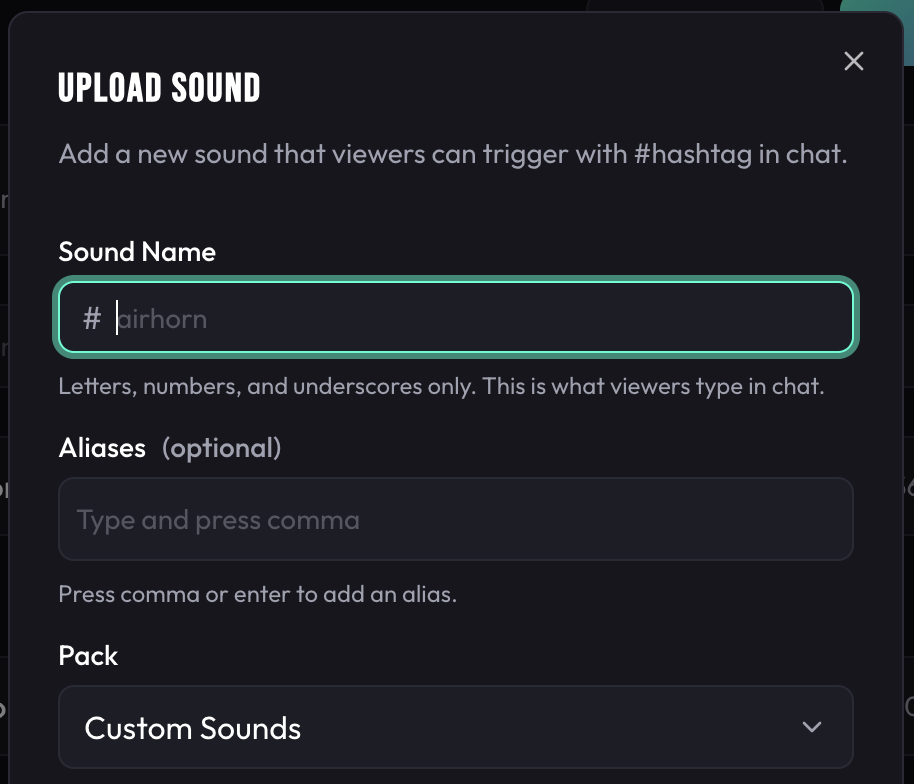
From your dashboard, click Add Sound to upload a new sound. Supported formats: MP3, WAV, OGG, WebM.
Sound Settings
- Name: The hashtag viewers will use (e.g., "airhorn" →
#airhorn) - Pack: Organise sounds into packs (required)
- Enabled: Toggle whether the sound can be triggered
- Audio Normalisation: Toggle to normalise the uploaded file to -14 LUFS (Pro only — defaults to your auto-normalise setting)
Multiple Files per Sound Starter+
Add multiple audio files to a single sound. When triggered, a random file plays—great for variety!
- Starter: Up to 3 files per sound
- Pro: Up to 5 files per sound
Sound Aliases Starter+
Create alternative names for your sounds. If your sound is named "airhorn", you could add aliases like "horn" or "honk"—viewers can use any of them.
Audio Normalisation Pro Only
Ensure consistent volume across all your sounds with LUFS-based normalisation. No more ear-blasting surprises!
Manual Normalisation
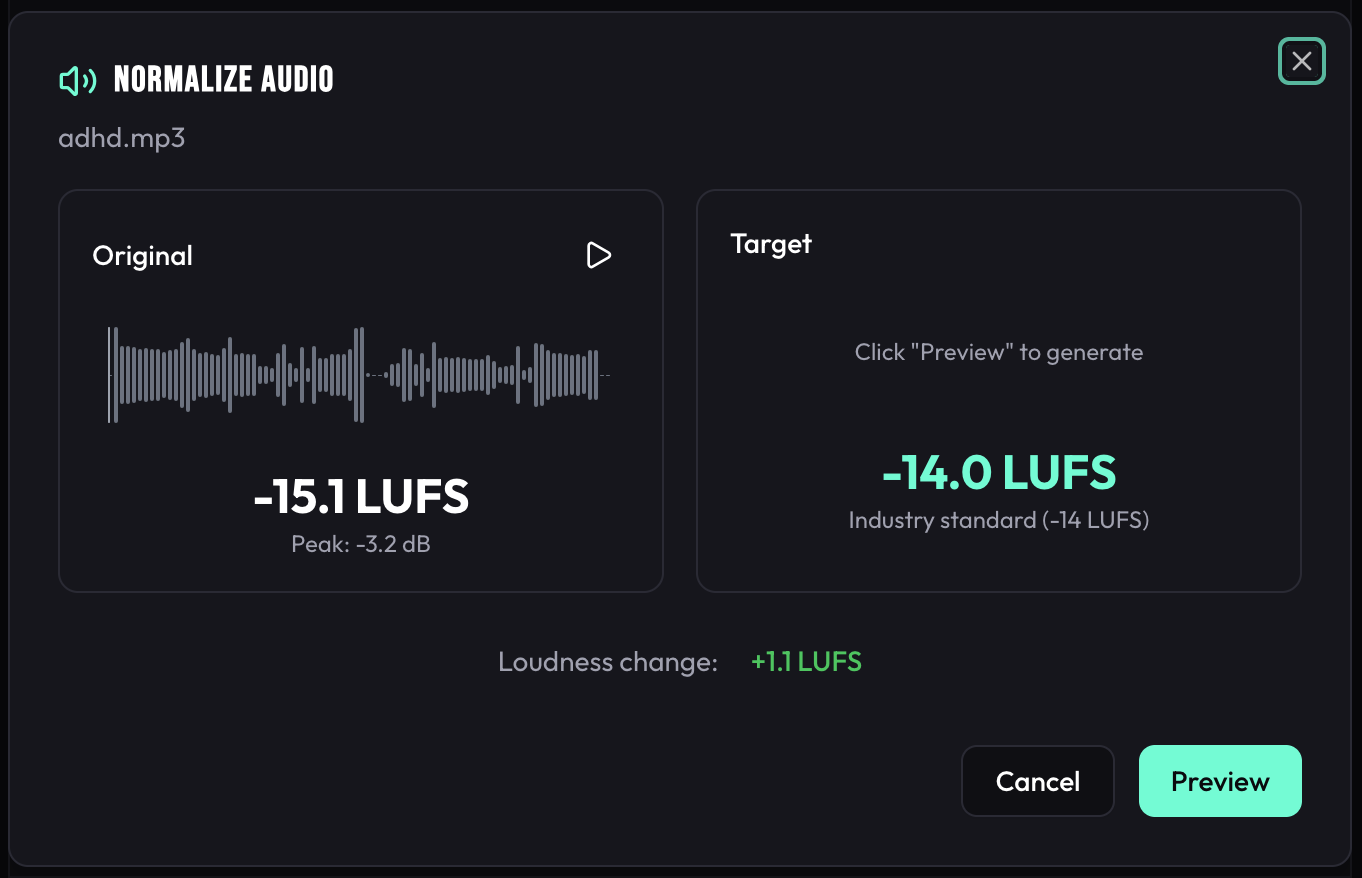
- Open a sound and click the normalise icon on any file
- Preview the before/after with waveform comparison
- Click Apply to normalise
- You can restore the original at any time
Auto-Normalisation
Enable Auto-normalise uploads in Settings to automatically normalise all future uploads. You can also toggle normalisation on or off for individual uploads directly in the upload form. Original files are always preserved for restoration.
Sound Packs
Organising Sounds
Every sound belongs to a pack. Packs help you organise sounds by theme, game, or purpose.
Global Sounds All Tiers
Access to 50+ pre-loaded sounds available to everyone. These are organised into themed packs and seasonal collections.
Seasonal Packs All Tiers
Special themed packs for holidays and events—Halloween, Christmas, and more. These are automatically enabled during their season.
When a seasonal pack is active, the sounds within it are enabled by default. You can disable the entire pack or individual sounds from your Settings if you prefer.
Custom Packs Starter+
Create your own sound packs to organise custom sounds however you like.
Pack Settings
- Name: Display name for the pack
- Enabled: Disable the entire pack at once
- Exclude from Random: Sounds in this pack won't play when viewers use
#random
Per-Pack Overrides
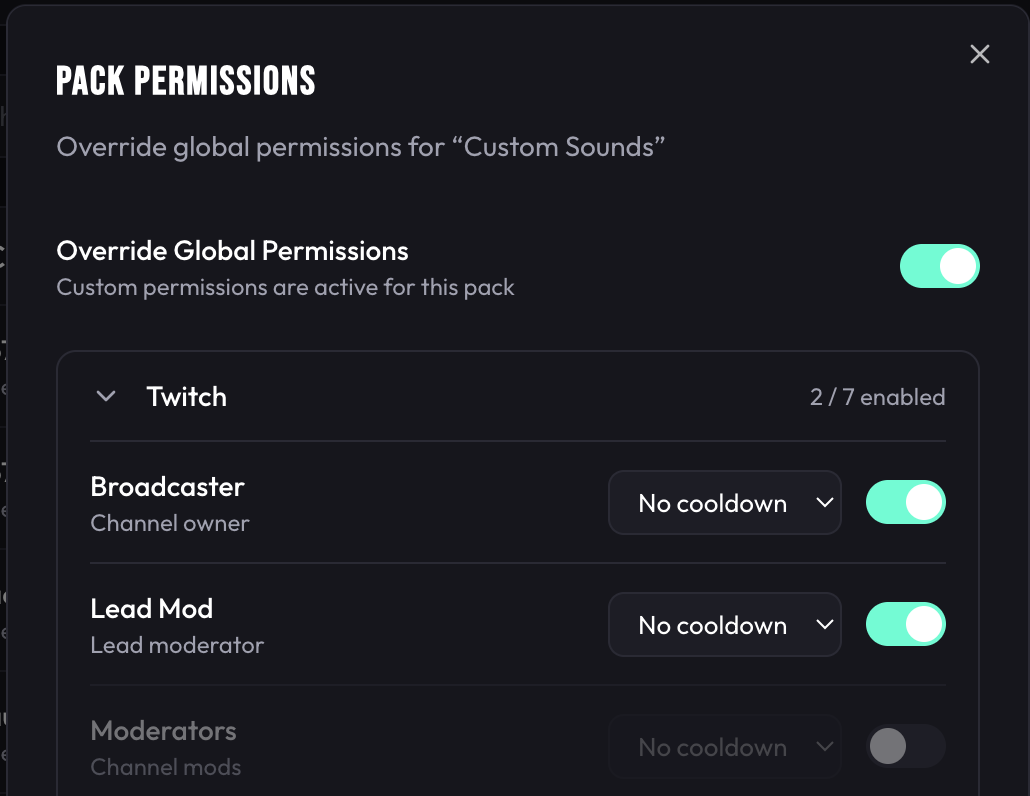
Each pack can have its own permission and cooldown settings that override your global defaults:
- Custom Permissions: Restrict specific packs to mods only, or allow everyone
- Custom Cooldowns: Set different cooldowns per pack
Chat Commands
Your viewers interact with SoundBooth Bot using hashtag commands in chat.
| Command | Description | Who Can Use |
|---|---|---|
#sounds |
Show a link to the channel's public sounds page | Everyone |
#soundname |
Play a specific sound by name or alias | Based on permissions |
#random |
Play a random enabled sound (excludes packs marked "exclude from random") | Based on permissions |
#here |
Plays your walk-on sound, or the sound matching your handle | Based on permissions |
#soundson |
Enable sound triggers for the channel | Broadcaster, Mods |
#soundsoff |
Disable sound triggers for the channel | Broadcaster, Mods |
#stop |
Stop the currently playing sound on the overlay | Broadcaster, Mods |
Public Sounds Page
Every user gets a public sounds page at soundboothbot.com/sounds/yourusername. Viewers can browse and preview your sounds there. The page is only active when you're live. Just type #sounds in chat!
Settings & Permissions
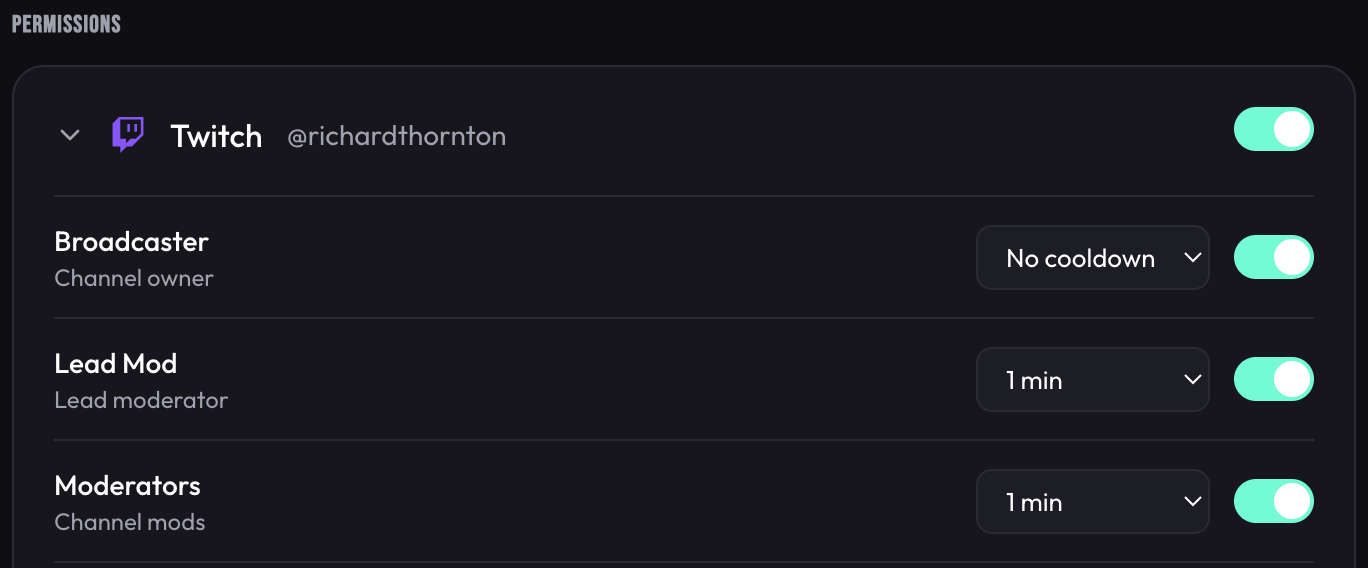
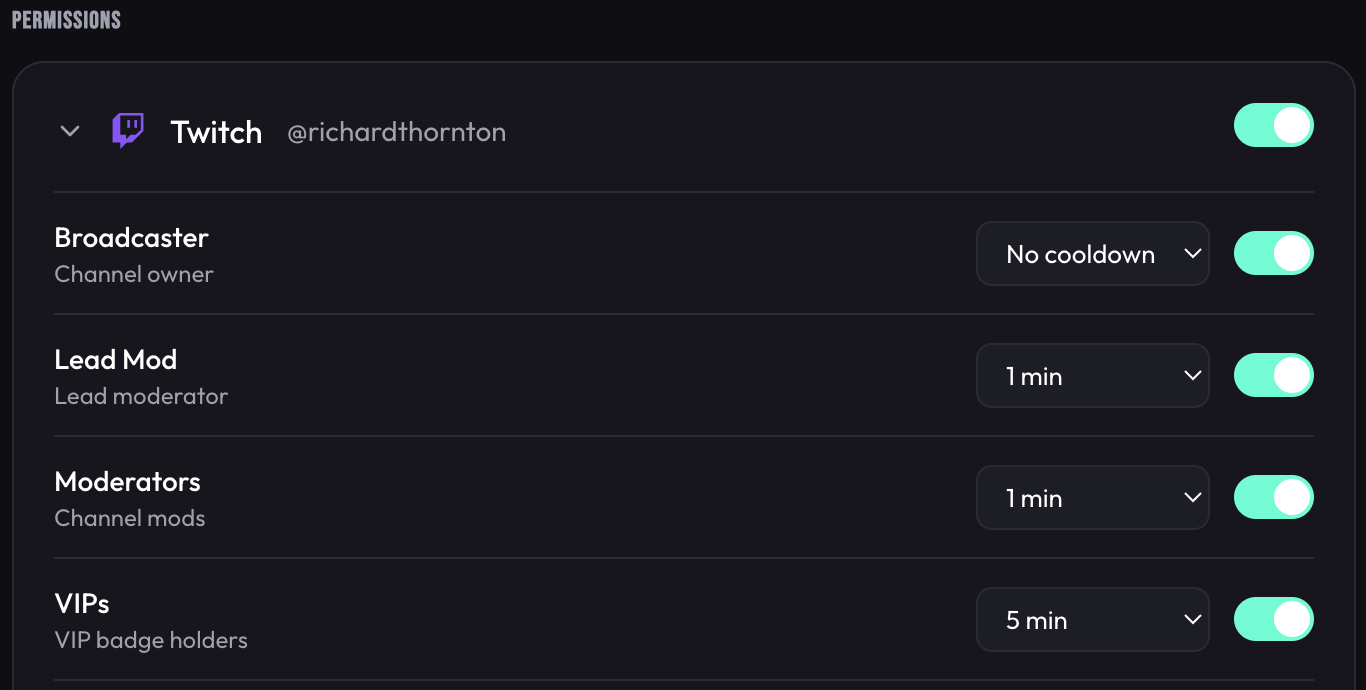
Role Permissions All Tiers
Control who can trigger sounds based on their role in your channel.
Broadcaster
You—always has permission
Moderator
Your channel mods
VIP
Twitch VIPs / YouTube Members
Subscriber
Twitch subs / YouTube sponsors
Follower
Channel followers (Twitch only)
Viewer
Anyone in chat
Cooldowns All Tiers
Set cooldowns to prevent sound spam. Cooldowns are per-user and role.
On Mute (Custom Ignore List) All Tiers
SoundBooth Bot automatically ignores messages from well-known bots like Nightbot, StreamElements, Moobot, and others. The On Mute section in Settings lets you add your own custom list of chat accounts to ignore.
Use this to mute additional bots, spam accounts, or any chat user you don't want triggering sounds on your channel.
- Type a username and click Add to mute them
- Muted accounts are matched case-insensitively
- Changes take effect in real-time — no need to restart your stream
- Click the delete button next to a name to unmute them
Other Settings
- Sounds Enabled: Master toggle to enable/disable all sounds
- Auto-normalise Uploads: Automatically normalise new uploads (Pro only)
Overlays
What is an Overlay?
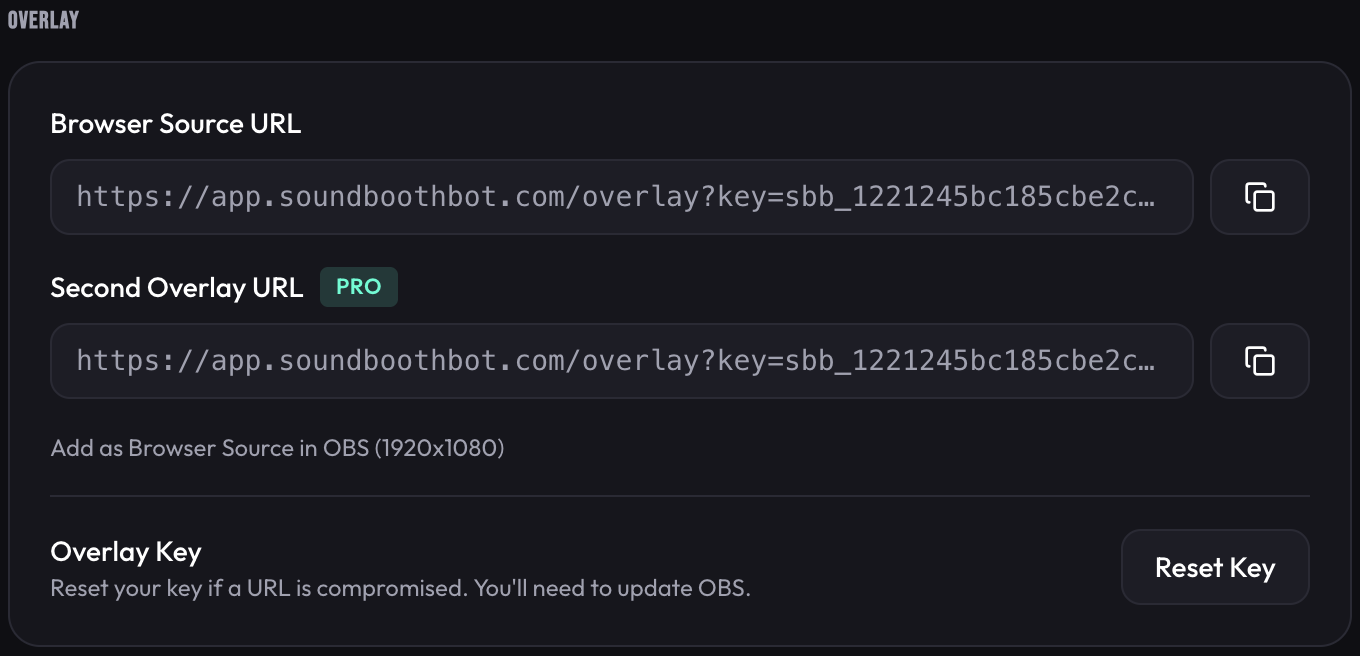
The overlay is a browser source you add to OBS. It plays the audio when viewers trigger sounds and can display visual effects.
Setting Up Your Overlay
- Go to Overlays in your dashboard
- Copy your unique overlay URL
- In OBS, add a Browser Source
- Paste your overlay URL
- Set dimensions to 1920x1080
- Position it in your scene (typically full-screen behind other elements)
Overlay Slots
Use multiple overlay slots for different scenes or configurations:
- Free / Starter: 1 overlay slot
- Pro: 2 overlay slots
Sound Deck Starter+
The Sound Deck is a streamer-facing dashboard that lets you trigger sounds directly on your overlay—no chat commands needed. Perfect for sound effects, transitions, or reactions during your stream.
How It Works
- Go to Deck in your dashboard
- Browse your sounds organised by pack
- Click any sound to instantly play it on your overlay
Your custom packs appear first (expanded by default), followed by global packs (collapsed). Each sound button shows the sound name and a file count badge if it has multiple files.
Features
- Instant Trigger: Click a sound to play it immediately on your overlay
- Fullscreen Mode: Toggle fullscreen for a distraction-free control surface
- Multi-File Sounds: Sounds with multiple files will randomly select one when triggered
Open the Sound Deck on a second monitor or tablet for quick access during your stream. Use fullscreen mode for a clean, focused layout.
Rate Limiting
Sound Deck triggers are rate-limited to 1 per second to prevent accidental spam. If you click too quickly, just wait a moment and try again.
Analytics Pro Only
Get detailed insights into how your viewers interact with sounds during streams.
Stream Statistics
View per-stream breakdowns including:
- Total sound plays
- Unique viewers who triggered sounds
- Top sounds by play count
- Activity timeline (when sounds were triggered)

Sound Statistics
Track individual sound performance:
- Total plays over time (24h, 7d, 30d, 365d)
- Which viewers trigger it most
- Trend analysis
Activity Heatmap
See when your chat is most active across all streams with a day-of-week and hour heatmap. Perfect for understanding your audience's behaviour patterns.
Troubleshooting
Bot Not Responding
- Make sure you're live—look for the green glow around your avatar in the dashboard. If it's not glowing, your channel hasn't been detected as live yet
- Check that your channel is connected in Settings
- Verify sounds are enabled (use
#soundson) - Use
#hereto check if the bot is active
Sounds Not Playing
- Check the overlay is added to your OBS scene
- Verify the browser source isn't muted in OBS
- Confirm the sound is enabled in your dashboard
- Check if the user has permission (role settings)
- Verify the cooldown hasn't been triggered
Audio Issues
- Too quiet/loud: Adjust volume in sound settings or use normalisation (Pro)
- Distortion: Try normalising the audio file
- Delay: Check your OBS browser source settings—enable hardware acceleration
Still Need Help?
Join our Discord community for support from the team and other streamers. You can also email us at richard@soundboothbot.com.